
Sponsored

Just updated to Sync 3.4 on my Ranger 2019

Texas Scout

Well-Known Member
First Name
Pablo
Joined
Oct 22, 2019
Threads
0
Messages
48
Reaction score
44
Location
Merritt Island
Vehicle(s)
2019 Ford Ranger Lariat, White Platinum
Maybe I should have gone 20021
Yeah, but hindsight is always 20/20.
And, that is why being a trail blazer is called being on the leading/bleeding edge ;-)

Like most things in life, sometimes you have to experience the pain to be able to appreciate the relief.

And besides, you know you really wanted to tinker with FORScan and the OBDII adapter anyway ;-)
Sponsored

 
Last edited:
Nick Barber

Well-Known Member
First Name
Nick
Joined
Jun 29, 2019
Threads
5
Messages
116
Reaction score
130
Location
Richland, WA
Vehicle(s)
2019 Lariat, FX4, White Platinum, Chrome, Tow
Occupation
Program Manager
Vehicle Showcase
1
Maybe I should have gone 20021
I don't know that success was due to the 20021 software alone, the install tool seemed to have some automation in place to make sure the install was successful. Maybe combination of both.
 
Last edited:

Big Blue

Well-Known Member
First Name
Lee
Joined
May 5, 2020
Threads
16
Messages
3,932
Reaction score
9,376
Location
Wisconsin
Vehicle(s)
2019 Ford Ranger XLT FX4 Supercrew lighting blue
Occupation
Retired mechanical designer
Does anyone know how to reactivate the Climate screen on an XLT? Everything I used hasn't worked (both as-built edits and enable/disable ways in Forscan). I used the APIM that was uploaded to the other topic and it worked, but it also fubar'd to many other things (namely it fubar'd my sound settings to where they couldn't be edited).

Anyone have any ideas?
I to am missing the climate screen on my non-NAV XLT. I also tryed using the APIM that was uploaded and got the climate screen back but also an unwanted NAV screen. The other issue I had was that the volume controls work but no longer showed the level in the pop-up. the pup-up just stayed at 0 (min volume). Probably some other things I haven't found yet. I compared the uploaded APIM to my APIM file and only found differences in 6 parameters. I just can't figure out which ones I need to change. If anyone has figured this out, on a non-NAV XLT, please post the Forscan changes you made.

I just want my climate screen back!!:frown:
 

Mandelbloom

Well-Known Member
First Name
Adam
Joined
Apr 21, 2020
Threads
3
Messages
48
Reaction score
30
Location
North Carolina
Vehicle(s)
2019 Ranger XLT
Yeah I don’t have Nav either ... I don’t really need the climate screen but you can’t change a few things without it such as airflow . What I noticed is on my wife’s car there are hard buttons for that which likely explains why it doesn’t need it.


Mandelbloom

Well-Known Member
First Name
Adam
Joined
Apr 21, 2020
Threads
3
Messages
48
Reaction score
30
Location
North Carolina
Vehicle(s)
2019 Ranger XLT
Ok now I notice some stations have icons and others don’t .. maybe I’ll try and move to
20021
 

Big Blue

Well-Known Member
First Name
Lee
Joined
May 5, 2020
Threads
16
Messages
3,932
Reaction score
9,376
Location
Wisconsin
Vehicle(s)
2019 Ford Ranger XLT FX4 Supercrew lighting blue
Occupation
Retired mechanical designer
Yeah I don’t have Nav either ... I don’t really need the climate screen but you can’t change a few things without it such as airflow . What I noticed is on my wife’s car there are hard buttons for that which likely explains why it doesn’t need it.
Yeah! I got my climate screen back on my non-NAV XLT. I went into Forscan and made some edits using the menu selections. I added the heated seat buttons and changed my splash screen to "Rapture" I know where these are in the As-built. Also enabled Climate Mode and selected the "GT" color scheme. I then wrote the entire block and exited the procedure. When SYNC re-booted no changes? I then went into the As-built and looked for changes, they were there. I then forced a full write if the As-built even though it said there were no changes. SYNC re-boots and Wallah I have my Rapture splash screen, heated seats on the home screen and my climate button. I'm happy again.

It seams the menu driven selection screen doesn't always enable the changes or something. I think I have heard of this before in this forum.

Anyway the changes I had were these:

7D0-01-01 xxxx - xxxx - x3xx This enables the heated seat buttons
7D0-02-01 xxxx - x5xx - xxxx This sets the 'Rapture" splash screen

7D0-03-01 xxxx - x4xx - xxxx This may be the "GT" color scheme. mine was 0
7D0-04-01 xxxx - xx0x - xxxx I think this is the one that brought the climate screen back
mine was originally 8.

Hope this help someone else that has a non-NAV unit and lost their climate screen in the upgrade to 3.4. The jury is still out for how well I like the change. It does seem smoother and more responsive. Wish we could have more control over screen colors/themes. I still think the daytime colors are a bit bright, maybe if we could set the brightness for each mode independently.

Ford definitely needs to get better at doing electronics and upgrades IMHO.
I'm being polite now.:sunglasses:
 

landiscarrier

Well-Known Member
First Name
Landis
Joined
Jun 2, 2020
Threads
19
Messages
965
Reaction score
2,509
Location
Pocono Mtns Pa
Vehicle(s)
2025 Ranger Raptor
Occupation
Sales
Hmmm I updated using the Cyanlab tool just last week and lost the climate button. Oh well!
 

Mandelbloom

Well-Known Member
First Name
Adam
Joined
Apr 21, 2020
Threads
3
Messages
48
Reaction score
30
Location
North Carolina
Vehicle(s)
2019 Ranger XLT
FYI. The official build / updater that should roll out next month is 20136. That's the one meant for the MY19 vehicles that can go from v3.3 to v3.4.
For those of us who updated with the Cyan labs tools should we be ok to get the “official” update ?
 

Big Blue

Well-Known Member
First Name
Lee
Joined
May 5, 2020
Threads
16
Messages
3,932
Reaction score
9,376
Location
Wisconsin
Vehicle(s)
2019 Ford Ranger XLT FX4 Supercrew lighting blue
Occupation
Retired mechanical designer
FYI. The official build / updater that should roll out next month is 20136. That's the one meant for the MY19 vehicles that can go from v3.3 to v3.4.
You mean we are FINALLY getting an official update! Now that we have all been beta testers and found the bugs for them. I think they intentionally let it out, so we could all be guinea pigs.;)
 

TylerV76

Well-Known Member
First Name
Tyler
Joined
Dec 5, 2019
Threads
4
Messages
306
Reaction score
395
Location
Oxford, Michigan
Vehicle(s)
2019 Ranger FX4
Occupation
Emissions testing supplier
FYI. The official build / updater that should roll out next month is 20136. That's the one meant for the MY19 vehicles that can go from v3.3 to v3.4.
So when this releases, we should be able to go to the Ford website, check our sync updates section, download the update and update as normal?
 

Texas Scout

Well-Known Member
First Name
Pablo
Joined
Oct 22, 2019
Threads
0
Messages
48
Reaction score
44
Location
Merritt Island
Vehicle(s)
2019 Ford Ranger Lariat, White Platinum
My post 140035 was based on an earlier version of cyanlab.net/tutorials to upgrade your Ford Sync software. This post is based on the new tutorials with two new Ford Sync software update options.

https://cyanlabs.net/tutorials/update-ford-sync-3-2-2-3-0-to-version-3-4-all-years-3-4-19200/

Option 1: Automated Method: A Ford-Sync-Downloader Windows application that will download the files directly from Ford, correctly prepare the USB drive, and copies the files to the USB drive.
At the end of this automated process the USB drive is ready for you to insert into your vehicle to execute the Sync update.

https://cyanlabs.net/applications/ford-sync-downloader/

Option 2: Manual Method: only option for macOS, optional method for Windows users.

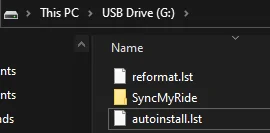
As the name implies the manual method requires you to manually execute the steps of preparing the USB drive, downloading the reformat tool, downloading the autoinstall.lst file, downloading the update files from Ford, and creating/editing the reformat.lst file, and then copying all of the files to the USB drive so it looks like this:

SyncUSB drive directory.png


All of the tar.gz files should be in the SyncMyRide folder.

The Manual Method steps are well documented on the website to guide you through each step of the process, and there are links to click on to download the necessary files to create your Sync update USB key.

The default page on the cyanlabs.net/tutorials/has the Automated Method (Windows Only) section "open". To see the documented steps and links for downloads for the Manual Method click on the "small v" on the far right of the row with Manual Method on the far left.
Open Manual Method.png


NOTE:
There is a documented history of many users of this forum using cyanlab.net/tutorials and creating a USB drive with versions older than 20021, executing the Sync Update, and then realizing after the Sync update was complete the Climate controls were removed from the display.
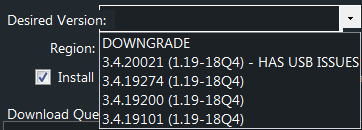
Sync Selection.png


If you have not previously executed a Sync update and "lost" your Climate controls on your display screen, members of this forum using the new cyanlab.net/tutorials selecting 3.4.20021 for their first attempt to create a USB drive to update their Sync version have successfully updated the Sync version without "losing" their Climate controls.

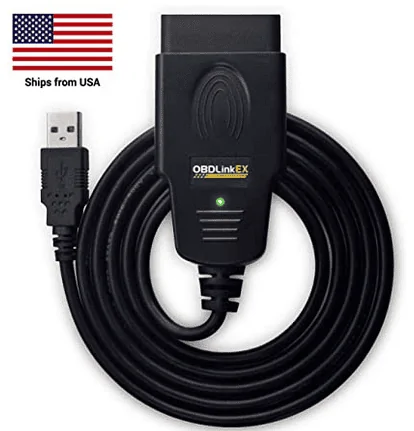
Full Disclosure: I share this information to inform future "beta testers" in an attempt to ensure they do not lose their Climate controls, which then requires an investment in the FORScan software and the OBDII adapter to reset to put the Climate controls back on the display.

OBDLink EX FORScan OBD Adapter.png
 
Last edited:

Texas Scout

Well-Known Member
First Name
Pablo
Joined
Oct 22, 2019
Threads
0
Messages
48
Reaction score
44
Location
Merritt Island
Vehicle(s)
2019 Ford Ranger Lariat, White Platinum
I don't know that success was due to the 20021 software alone, the install tool seemed to have some automation in place to make sure the install was successful. Maybe combination of both.
After everything I have seen and read in multiple forums on this topic I think your success was doing the update with the automated tool going directly to Sync 3.4.20021.

I just posted my most recent experience yesterday where I downgraded by Sync version from 3.4.20012 to 3.4.19101 in order to use the tool to update my maps.

As stated in my most recent post when using the Automated Tool and selecting the 3.4.20012 option "HAS USB ISSUES", after the completion of the automated process the USB drive was blank.

I was able to create the USB drive for the 3.4.20012 update using the manual method, and I successfully updated back from 3.4.19101 to 3.4.20012 with NA 119 maps.

As I stated before, it would appear the difference is the update to 20021 rather than an older version
Sponsored


Top