OP
OP

Frenchy
Well-Known Member
- First Name
- Chris
- Joined
- Mar 15, 2020
- Threads
- 169
- Messages
- 7,710
- Reaction score
- 11,019
- Location
- Elizabeth, Colorado
- Vehicle(s)
- 2012 Nissan Frontier, 1994 F150 XL, 2022 Ford Transit
- Occupation
- Field Service Technician
- Thread starter
- #31
Another update to this lovely thread.
As many already know, the Pathfinder has passed back in March(I'm still pissed about it). Since the. I got back into a Nissan Frontier Pro-4X(there are things I like about it over the Ranger. Sorry not sorry) a week later. Well the Trad was Transferred over and I did play with the GPS a bit.
So far I can say that I like the Tread Overland very well. I like it enough that I have ordered the external Antenna's for the GPS, InReach and the Group Ride(I found some peps and they said it's worth getting).
Now before I went to my folks place for Thanksgiving, Garmin was kind enough to release a Gian Update with the Maps and the System. I can't your the Maps too much, but I can say there was an update to the Tread Weather app. This particular update was something I was happy about and I thought I should share it as I feel it is a useful tool to say the least!
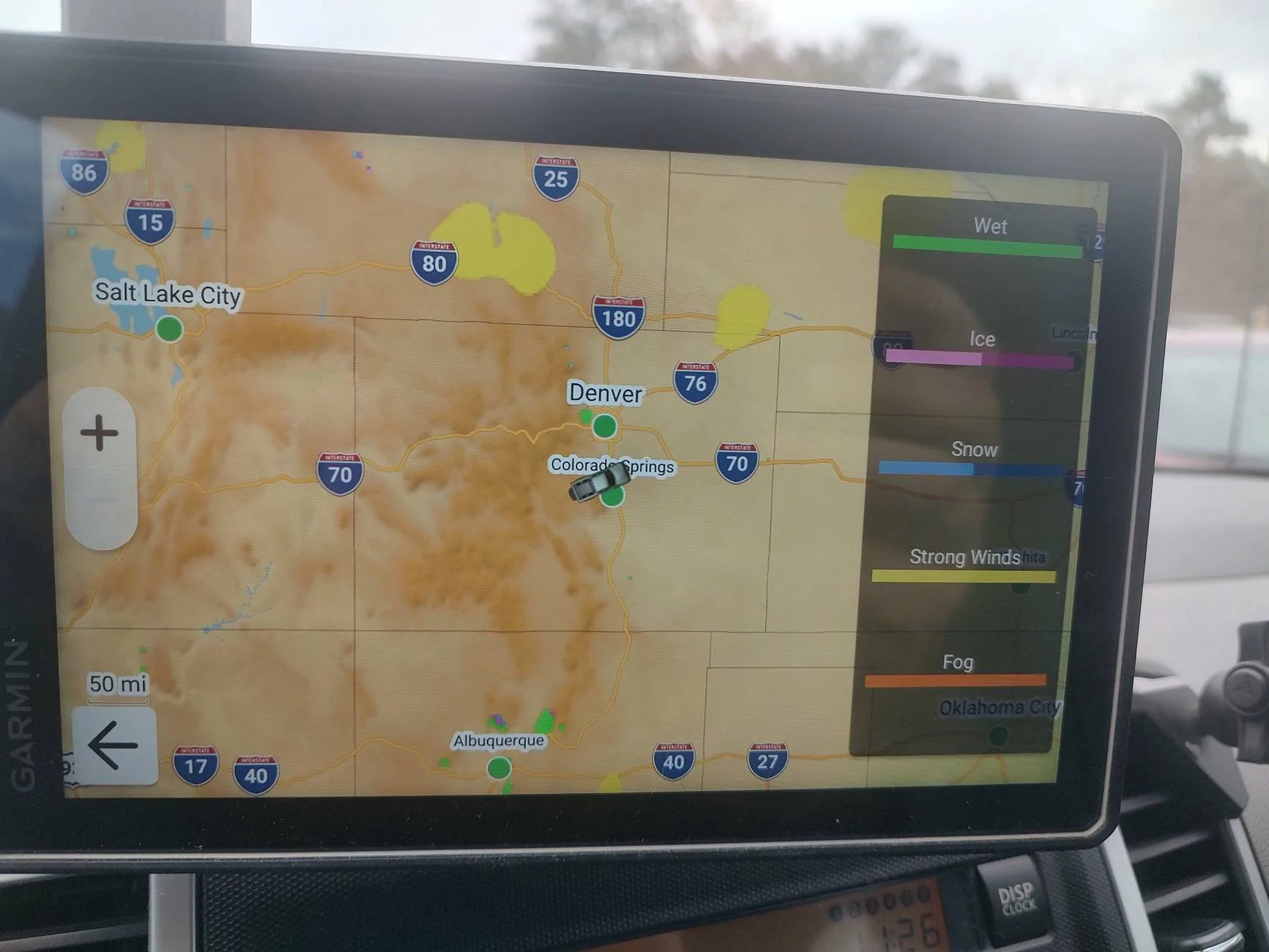
Now as I mentioned before the Tread Weather requires your Cellphone to have the Tread App and be connected via Bluetooth. This will give you the general Forecast for the Location you are in and give some more hourly stuff if you select the day you are on. It also has the Weather Radar for Rain and Snow. Well the recent add-on was the Conditions Radar. This will tell you a general area of where it is Wet, Snowy, Icy, Foggy and Very Windy. I found this out 2 weeks ago on my way down. It was real nice because it allowed me to make quick decisions on how I should adjust my trip.
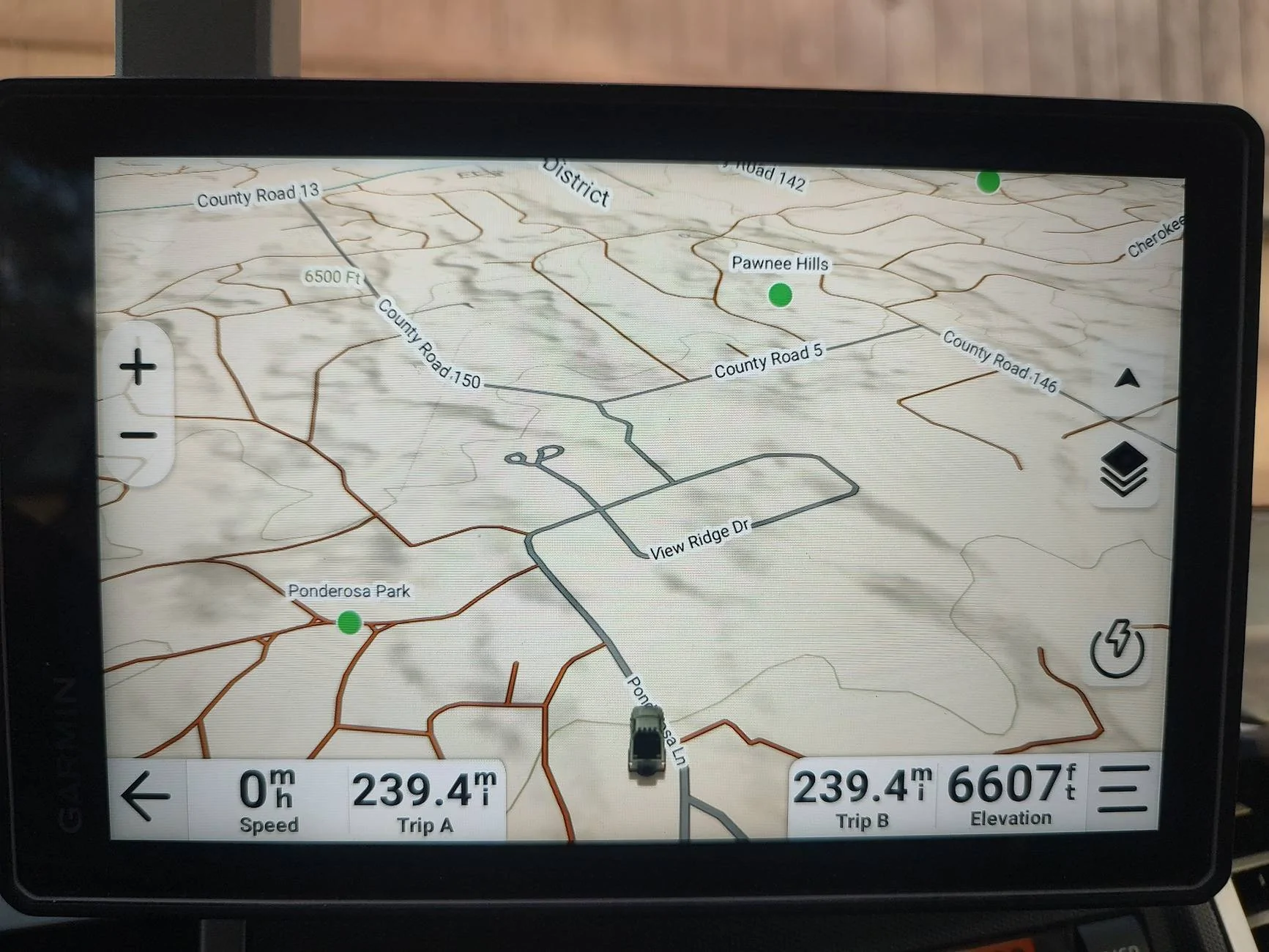
General Home Screen

Tread Weather Home Screen
Weather Radar(nothing happening at the time shown)
Tread Weather Conditions Screen (surprised Wyoming isn't all Yellow)
Though I'm not quite at a year of having this GPS, I can comfortably say that it is certainly well worth the Money for those that will use it to it's full potential!!
As many already know, the Pathfinder has passed back in March(I'm still pissed about it). Since the. I got back into a Nissan Frontier Pro-4X(there are things I like about it over the Ranger. Sorry not sorry) a week later. Well the Trad was Transferred over and I did play with the GPS a bit.
So far I can say that I like the Tread Overland very well. I like it enough that I have ordered the external Antenna's for the GPS, InReach and the Group Ride(I found some peps and they said it's worth getting).
Now before I went to my folks place for Thanksgiving, Garmin was kind enough to release a Gian Update with the Maps and the System. I can't your the Maps too much, but I can say there was an update to the Tread Weather app. This particular update was something I was happy about and I thought I should share it as I feel it is a useful tool to say the least!
Now as I mentioned before the Tread Weather requires your Cellphone to have the Tread App and be connected via Bluetooth. This will give you the general Forecast for the Location you are in and give some more hourly stuff if you select the day you are on. It also has the Weather Radar for Rain and Snow. Well the recent add-on was the Conditions Radar. This will tell you a general area of where it is Wet, Snowy, Icy, Foggy and Very Windy. I found this out 2 weeks ago on my way down. It was real nice because it allowed me to make quick decisions on how I should adjust my trip.
General Home Screen
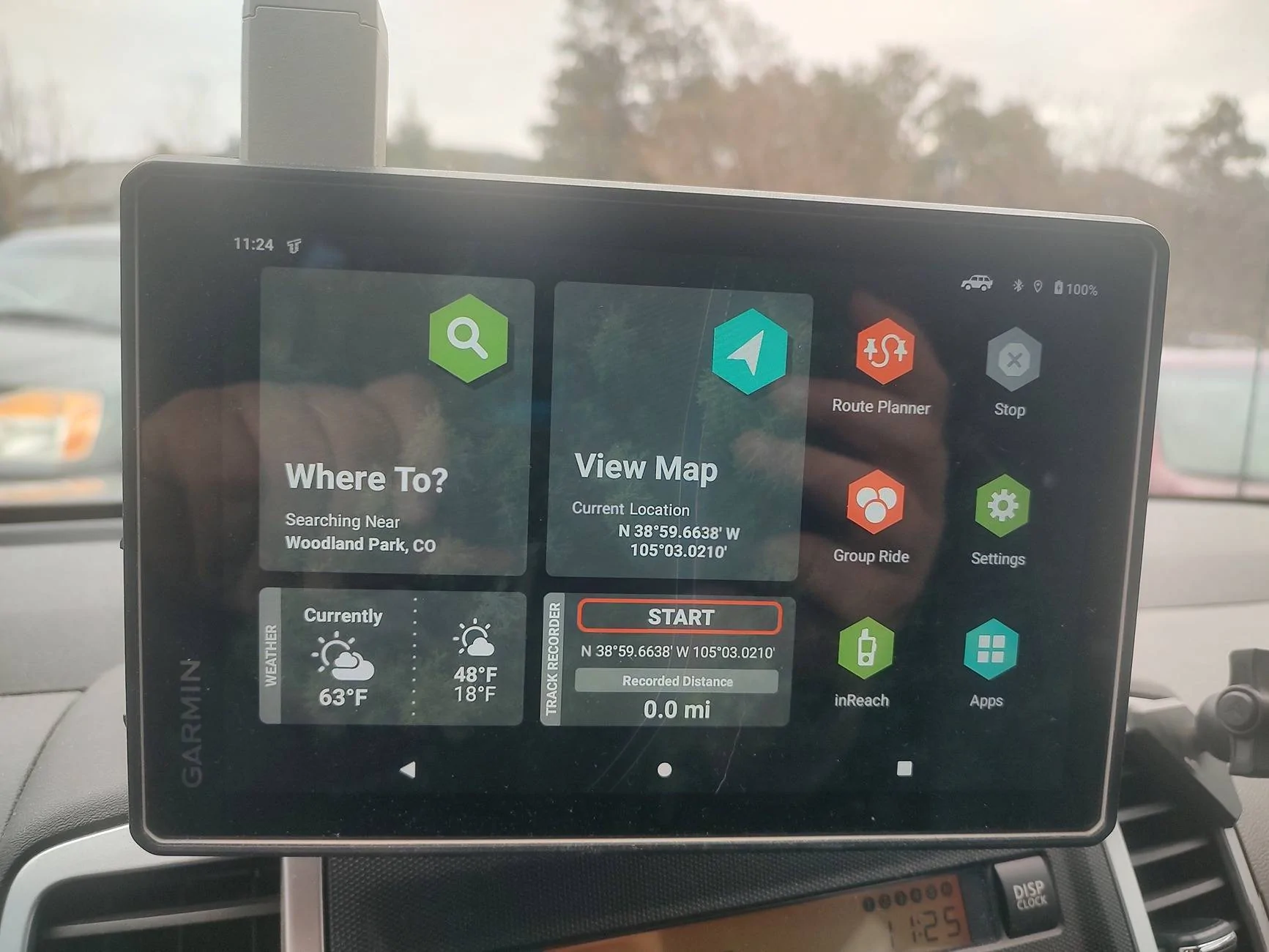
Tread Weather Home Screen
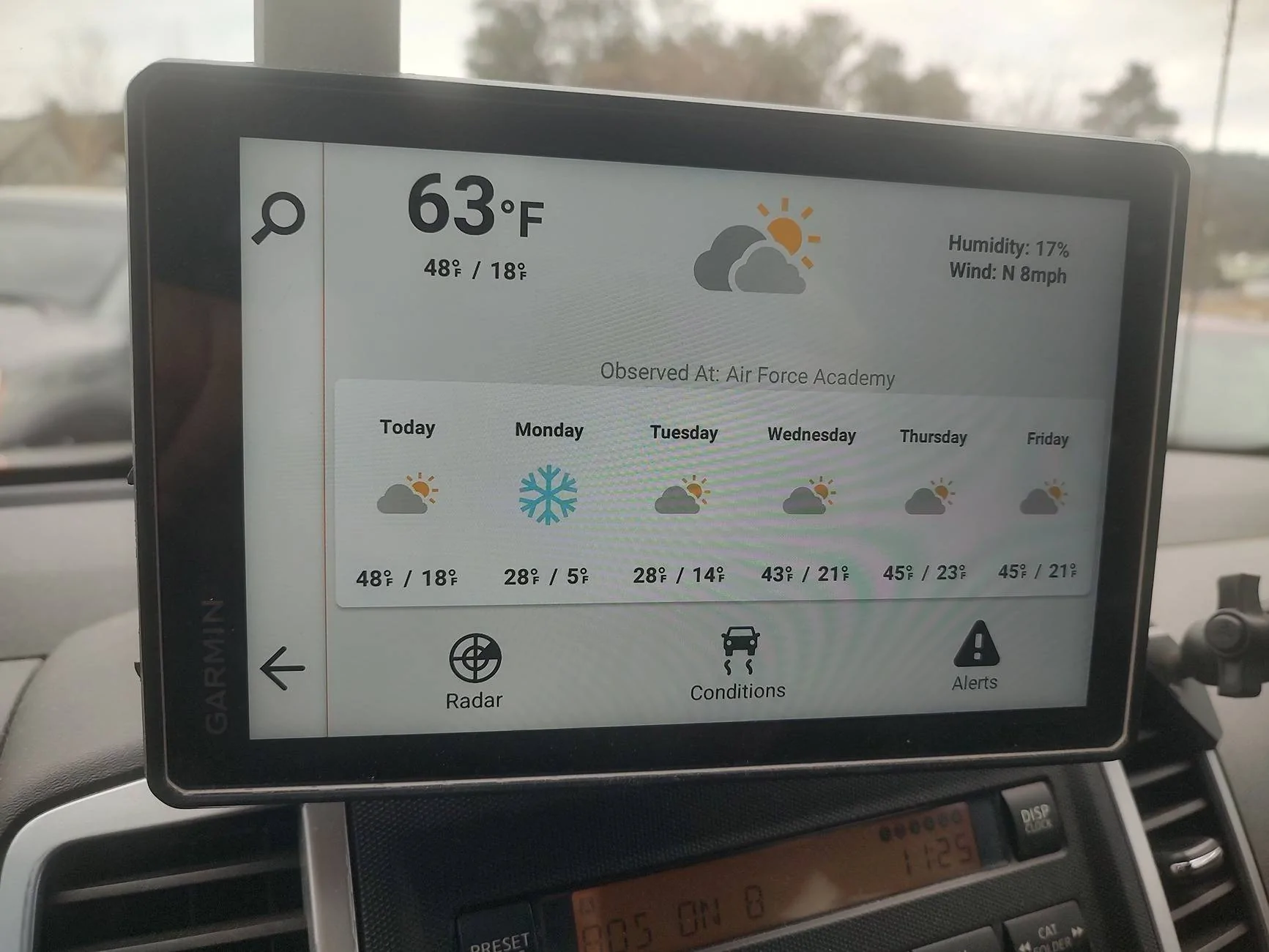
Weather Radar(nothing happening at the time shown)
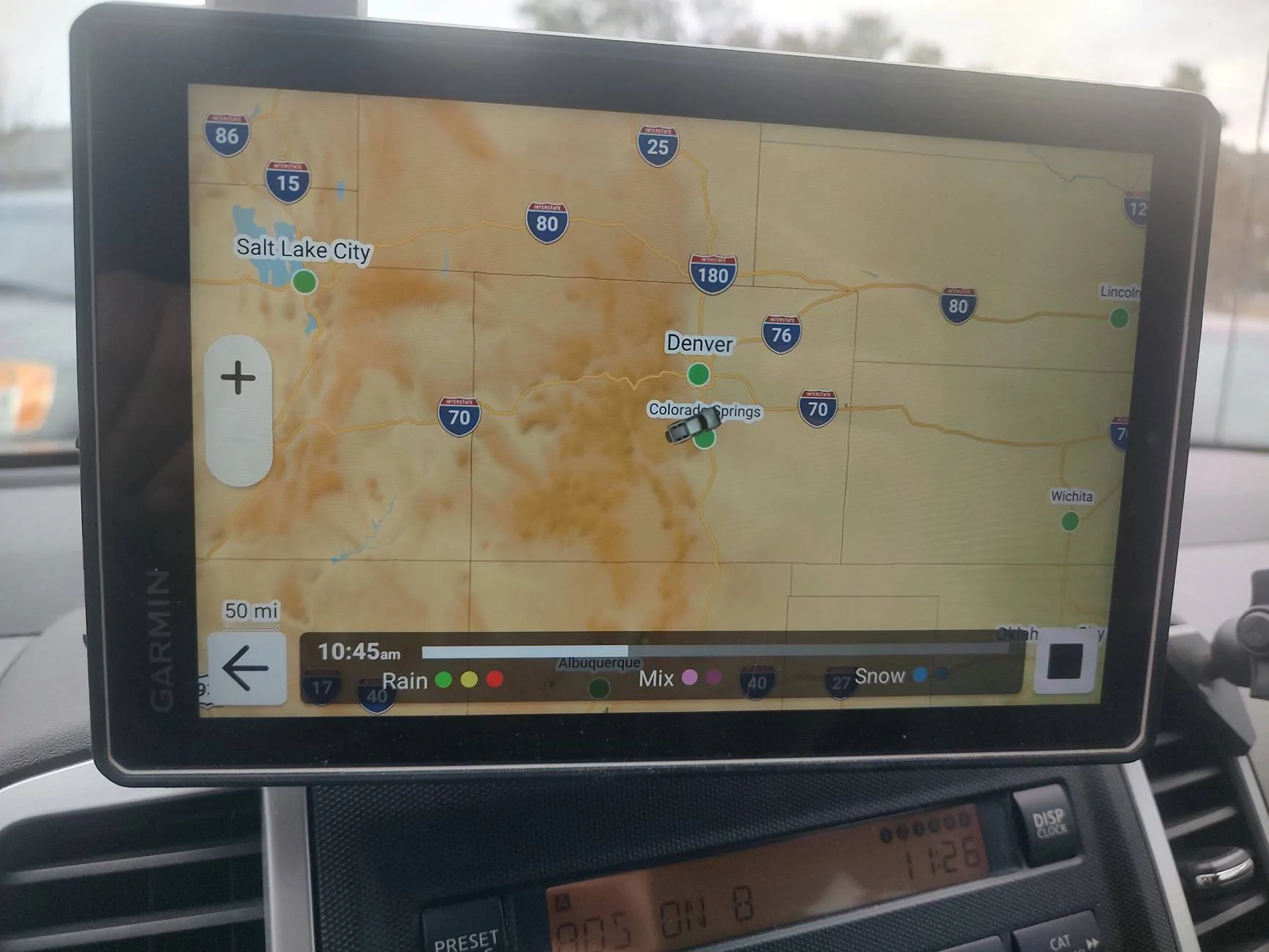
Tread Weather Conditions Screen (surprised Wyoming isn't all Yellow)
Though I'm not quite at a year of having this GPS, I can comfortably say that it is certainly well worth the Money for those that will use it to it's full potential!!
Sponsored